The Mi Seguridad app is your client’s window into their own service: who is on post right now, what happened overnight, which patrols were completed. But clients do not sign themselves up. You grant the access from the CRM, and until you do, the app is useless to them even if they have already installed it.
This guide covers the whole process: inviting the primary contact, adding other people from the same company, what the client receives, and what to do when something goes wrong.
First: the access model
This is the part that causes the most confusion, so it is worth understanding before you touch anything.
A client account in CGuardPro can hold two kinds of access:
The primary holder. The main person on that account — usually the legal representative or whoever signs the contract. Their user is linked directly to the client record. There is exactly one per account.
Additional access. Everyone else at the same company who also needs the app: the head of security, the building manager, the person who runs the night shift. They are linked by a different route and do not displace the primary holder.
Why does the distinction matter? Because if you try inviting a second address thinking you are “updating” the client, the system does not replace the primary holder — it creates additional access. That is deliberate. Reassigning the holder would cut off the previous one overnight, with nobody the wiser.
Every person signs in with their own address and their own password. Do not share one login between the head of security and the manager: besides being poor practice, the app allows one active session per person, so whoever signs in second knocks the first one out.
Two prerequisites
Check these two things before inviting, or the invitation will fail:
1. The client needs an email address on file. Without one there is nowhere to send the invitation. If the client has none, the CRM tells you so with a red notice: “This client has no email address configured.” Edit the client, add the address, and come back.
2. The app invitation must be switched on in Email Preferences. Your company settings hold a toggle called “Mi Seguridad app invitation”. If it is off, the system blocks the send and answers: “App invitations are disabled in Email Preferences.” That is not a bug — it is your own configuration.
You also need user-editing permissions in the CRM. If your role lacks them, the action will not appear.
Step by step: inviting the primary holder
1. Open the CRM and go to Clients.
2. Find the client in the list and open that row’s action menu.
3. Choose “Invite to app”.
4. A confirmation window opens showing the destination address and what the message contains:
- An introduction to the Mi Seguridad app
- Google Play and App Store links
- A link to activate the account and set a password
5. Press “Send invitation”. You will see the confirmation “App invitation sent to [address]”.
That is all you have to do. Behind the scenes the system created (or reused) the user, assigned the client role, linked it to the account and generated a unique activation link.
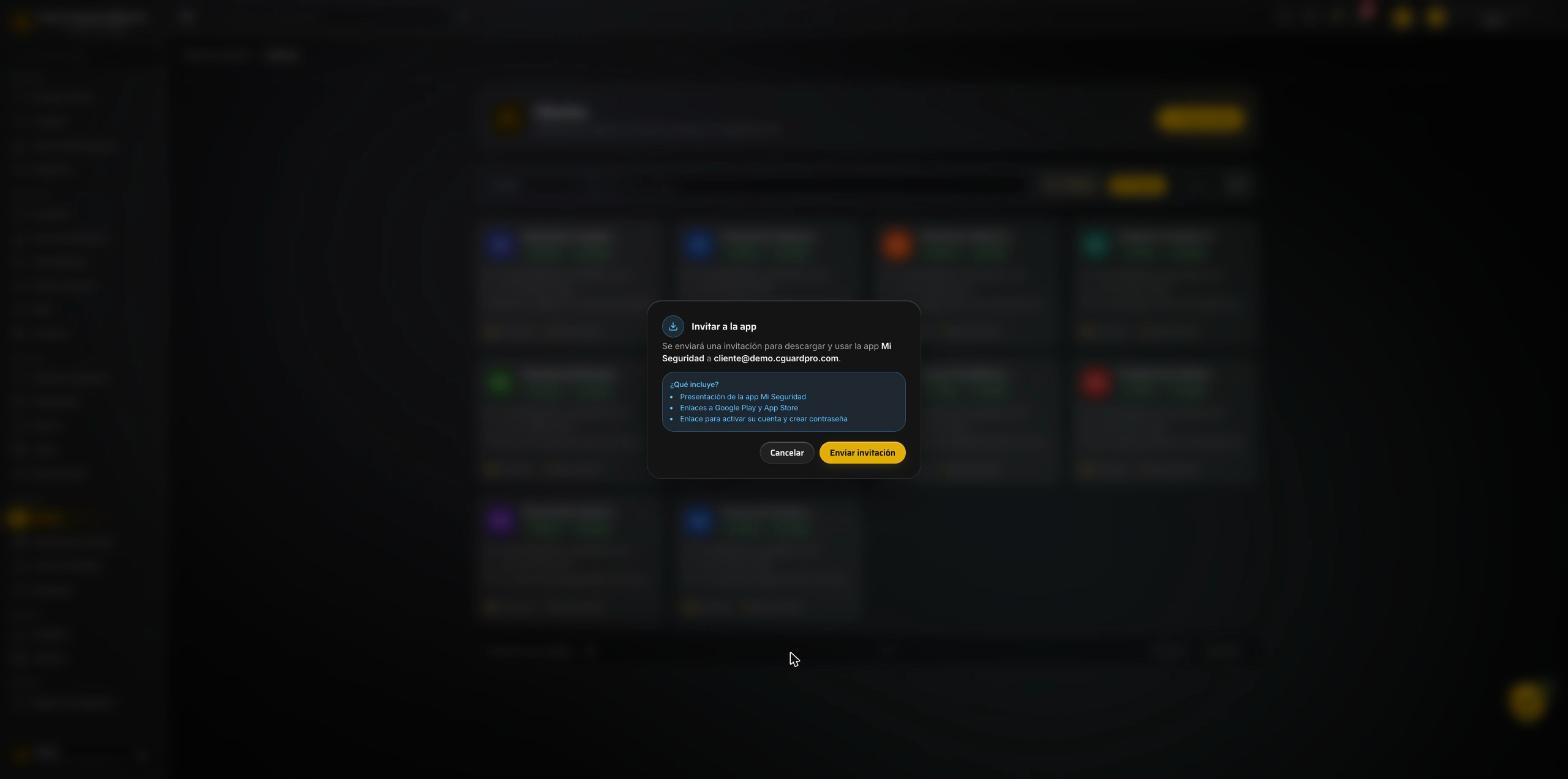 The window shows the destination address and what the email contains, before anything is sent.
What the client receives
They get an email with the download links and a button to activate the account. From their side:
1. Download the app.
- Android → Mi Seguridad on Google Play
- iPhone → Mi Seguridad on the App Store
2. Open the activation link from the email. It takes them to a registration page where all they do is set a password.
3. Set the password. Five rules apply: at least 8 characters, one uppercase letter, one lowercase letter, one number and one special character. The page checks each one as they type.
4. Sign in to the app with their address and the password they just created.
Once registration completes, their status in your CRM moves automatically from invited to active. That tells you who is in and who is still pending without having to ask.
The activation link lasts 30 days. The window is deliberately generous, because clients rarely activate the same day. If it expires, nothing is broken — resend the invitation and a new link is issued.
Adding more people from the same company
When a client asks you to “let my head of security see the app too”, do not reuse the primary holder’s button: there is a dedicated flow.
1. Open the client record and go to the Client portal tab.
2. In the Users with access block, click Gestionar accesos. That takes you to the User access page.
3. Click Invitar acceso.
4. Fill in the window that opens:
- The person’s email — different from the primary holder’s.
- Access type — choose App Mi Seguridad or Portal web.
5. Click Send invitation. The access is created and they receive a link to set their password.
Here is the distinction most people miss: the app and the web portal are two separate accesses. The “Access type” selector decides which one that person gets. If they need both, invite them twice, once per channel.
Repeat for as many people as you need. The operation is idempotent: inviting the same address twice duplicates nothing, it just refreshes the link.
Checking who has access
The Client portal tab is the access dashboard. At the top it summarises the state in four cards: whether the account is linked, how many users with access there are, whether they have the Mi Seguridad app, and whether an email is on file.
Below, the Users with access block lists the real people. The primary holder carries the Titular badge; the rest appear as additional access. For the full list, open User access.
That list reads the real links from the database, not a separate register. If someone shows up there, they have access; if they do not, they do not.
The same tab holds two buttons worth keeping apart: Invite to the Mi Seguridad app opens mobile app access, and Resend portal invitation the web portal one.
Note: several controls on this screen — “Invitar acceso”, “App Mi Seguridad”, “Portal web” and the “Titular” badge — are not translated yet and appear in Spanish whatever your CRM language.
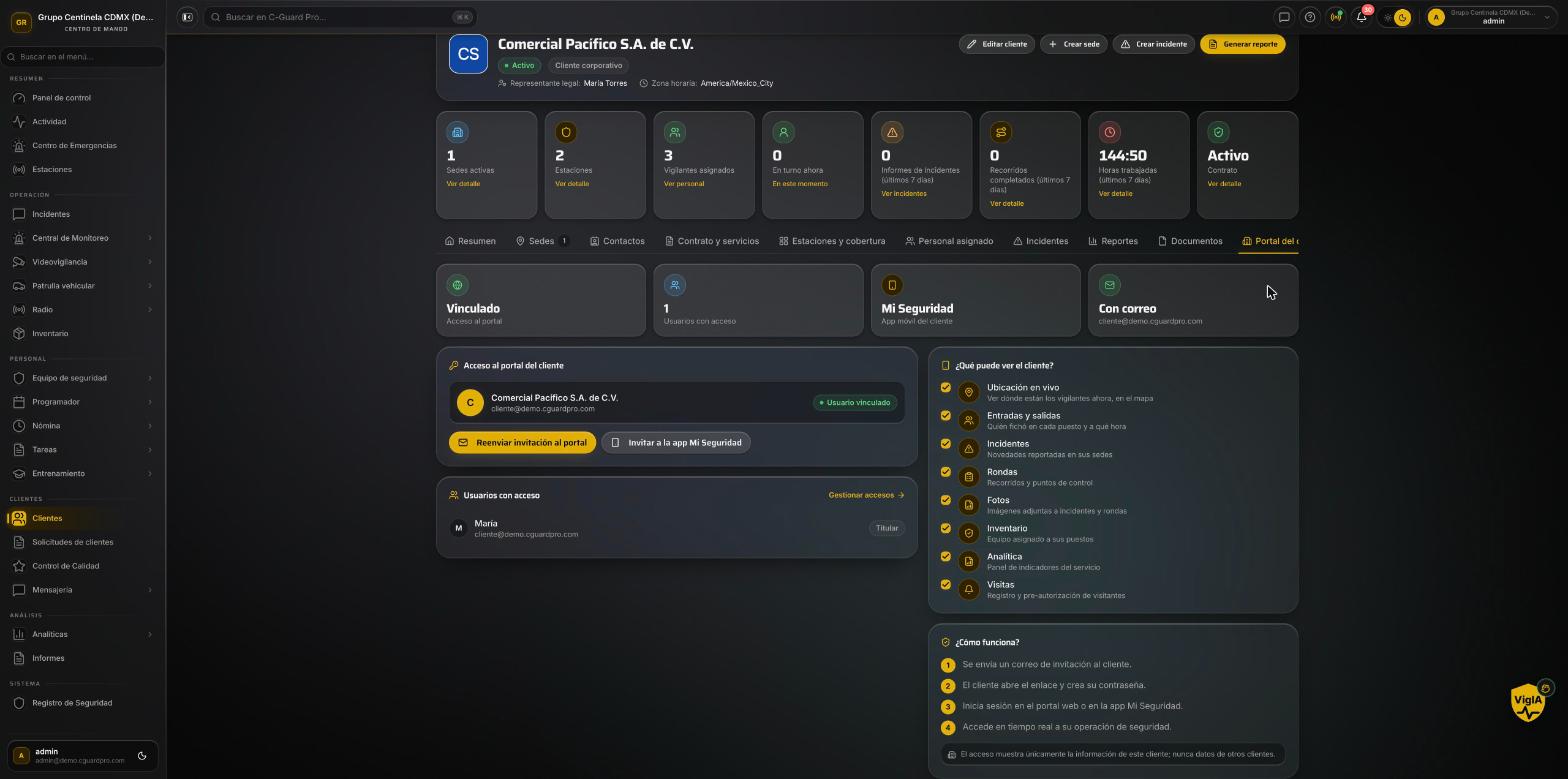 At a glance: whether the account is linked and who can sign in.
Common errors and what they mean
“This client has no email address or linked user.” The account was created without an address. Edit the client, add one, retry.
“App invitations are disabled in Email Preferences.” The “Mi Seguridad app invitation” toggle is off in your company settings. Turn it on.
The client says the email never arrived. Check spam first — it is where activation-link emails usually land. If it genuinely did not arrive, resend from the same button: it issues a fresh link and breaks nothing.
The client signs in and the app says their account is not a client account. Their user exists but without the client role in your company. This usually happens when that address was already used for another kind of access. Resending the invitation fixes it: the system adds the missing role without removing the ones they already had.
Two people keep knocking each other out. They are sharing one address. The app keeps one active session per person, not per company. Give each of them their own additional access and the problem disappears.
The client changed phones and cannot sign in. Nothing to do on the CRM side: they sign in with their address and password on the new device, and the old session closes itself.
Frequently asked questions
Can I invite before the contract is active? Yes. The invitation is independent of contract status. Many companies send it during onboarding so the client reaches day one with the app already installed.
Does additional access see the same as the primary holder? Yes. Both see that client account’s information. The difference is structural — how they are linked underneath — not a matter of permissions.
What if the primary holder leaves the company? Their access stays live until you remove it. When the representative changes, invite the new one and remove the previous one from the Access tab.
Can I resend the invitation as often as I like? Yes. Each send issues a fresh 30-day link. No duplicate users, nothing lost.
In short
Granting a client access is three decisions and one button: confirm they have an email, decide whether they are the primary holder or additional access, and send. The rest — creating the user, assigning the role, linking the account, issuing the link — the system handles.
The one thing not to improvise is the model: one primary holder per account, a separate login for each person. Companies that hand one account round three people end up with sessions fighting each other and no way to know who saw what.