The whole operation,
in your officer’s pocket

Selfie + GPS clock-in, live voice radio, QR patrol rounds, incidents with evidence, and client post orders — one app built for the field.

Real screenshots of the app in operation

On-duty guard dashboard in the C-Guard Pro app

What a real shift looks like

Scroll — or tap a feature — and the phone follows along.

01 Shift

A live shift, zero paperwork

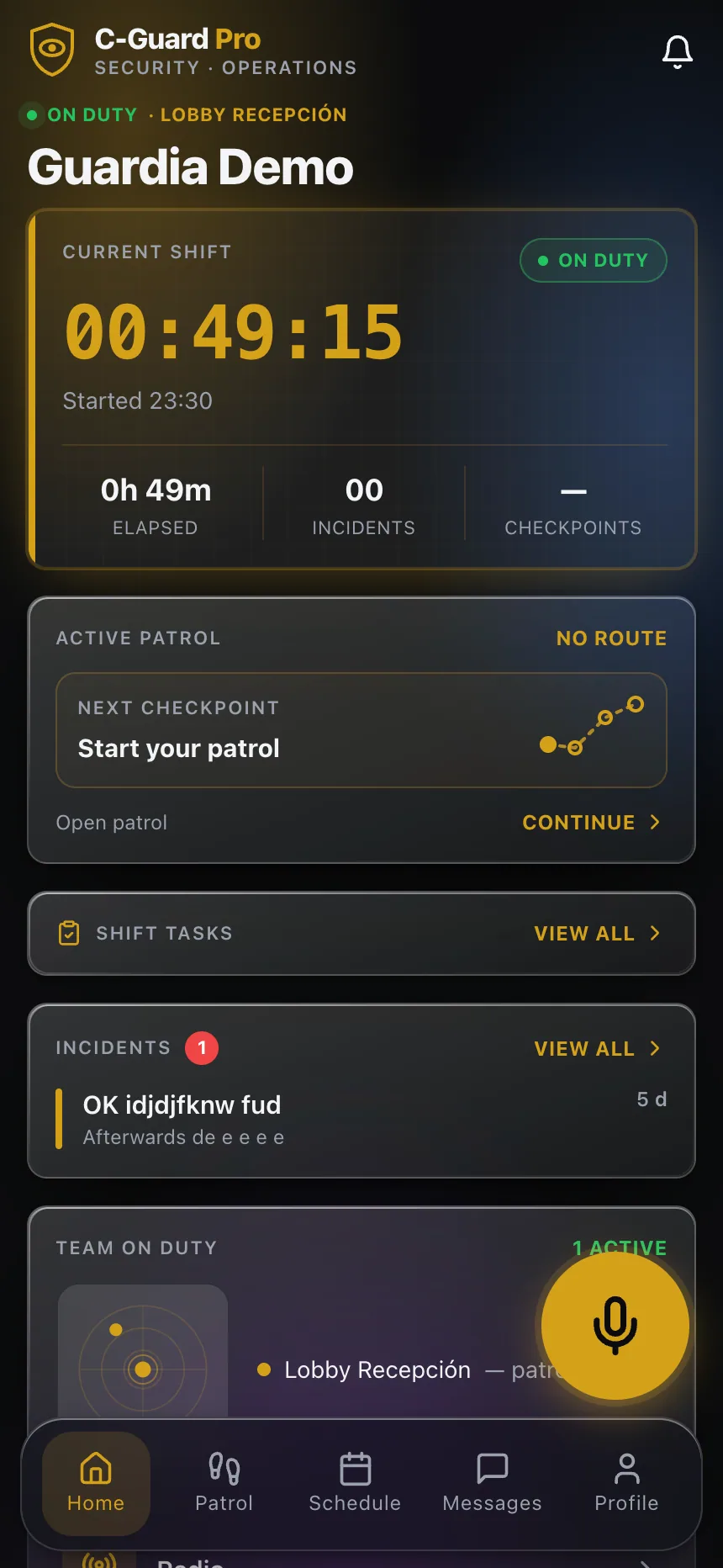
Officers clock in with a selfie and location, and their dashboard shows the shift timer, active patrol, tasks, and post activity in real time.

  • Selfie + GPS clock-in
  • Live timer and ON DUTY status
  • Post activity and on-duty team
A live shift, zero paperwork
02 Radio

Built-in PTT radio

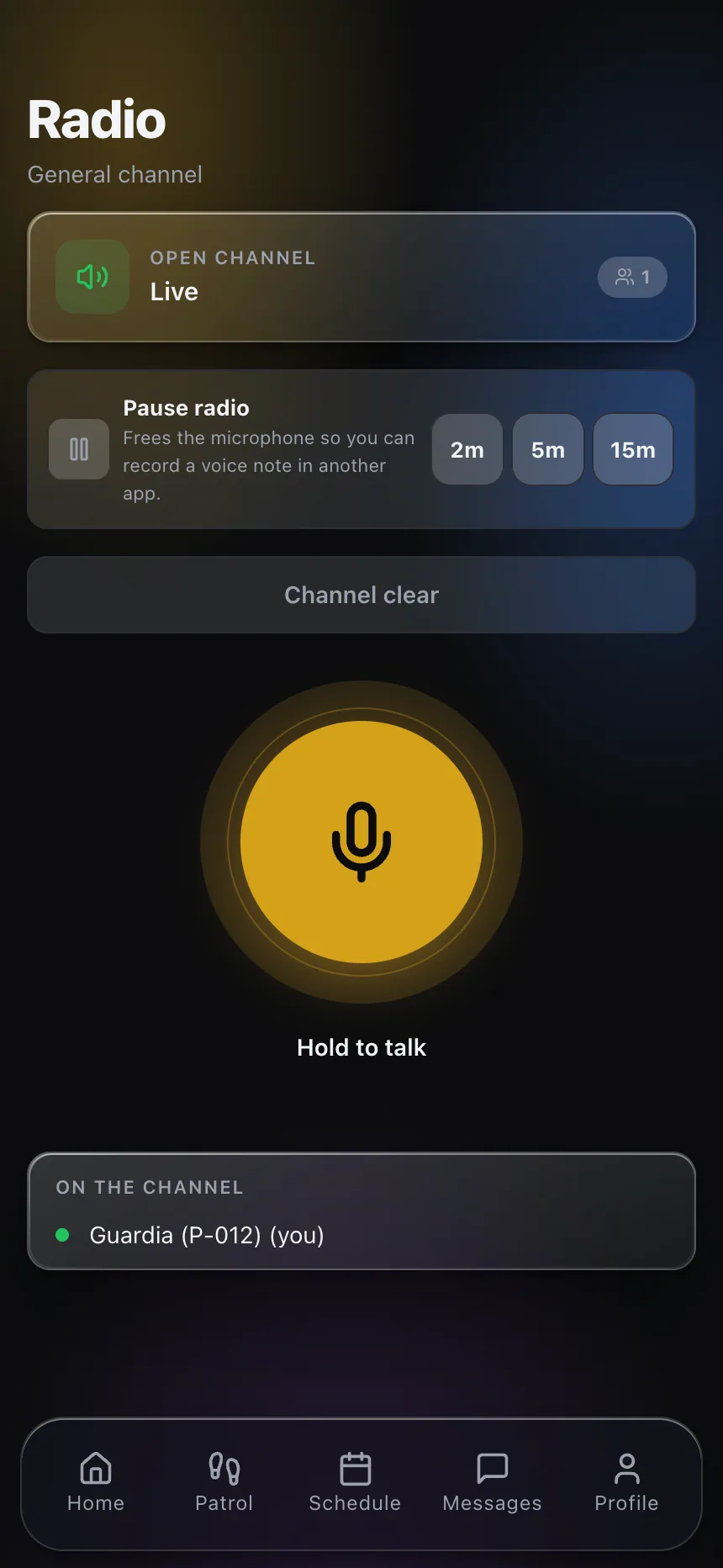
An open voice channel with push-to-talk right inside the app: dispatch, supervisors, and officers on the same channel, with encrypted audio that keeps working in the background.

  • Push-to-talk (PTT)
  • Live view of who’s on the channel
  • Keeps receiving with the screen locked
Built-in PTT radio
03 Incidents

Incidents with evidence

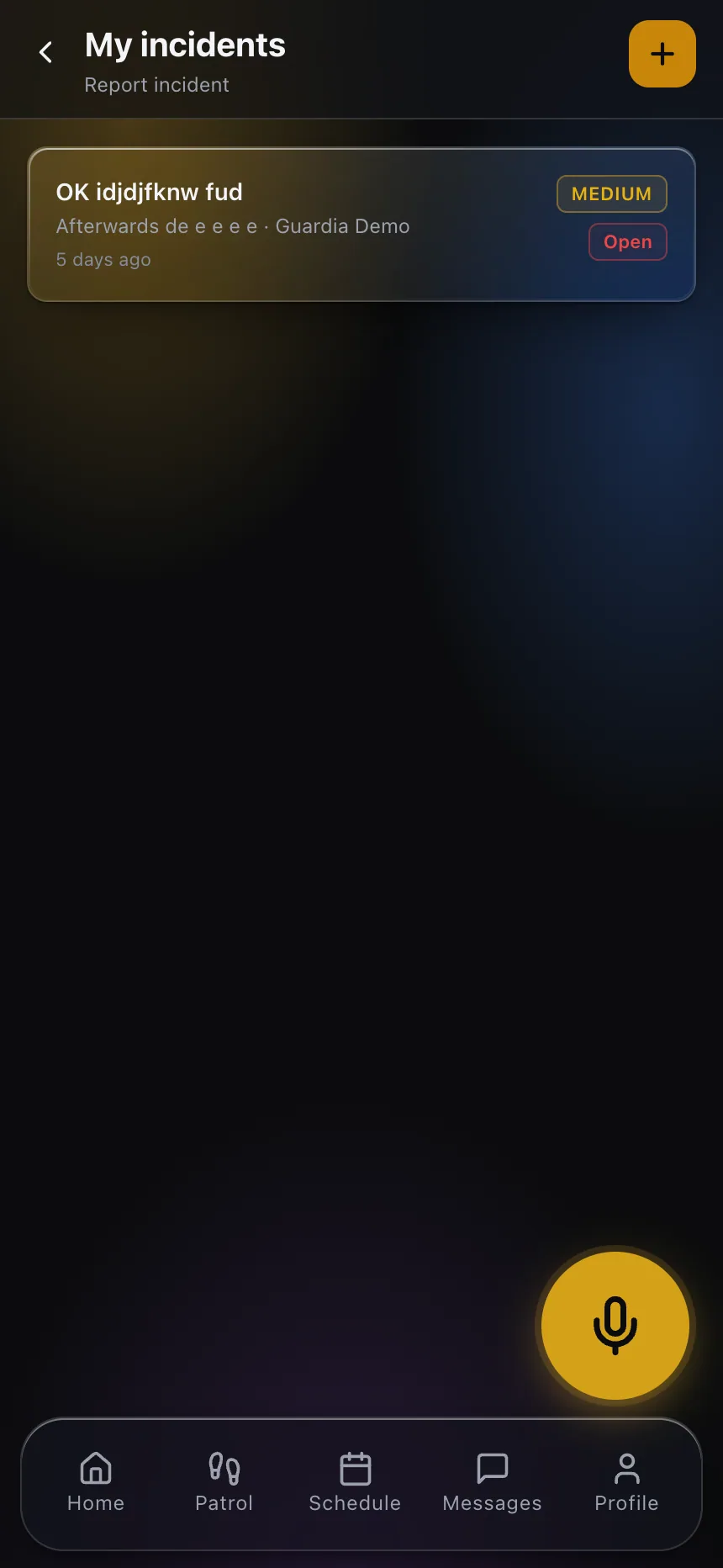
File a report in seconds with photo, priority, and location. Dispatch sees it instantly and the client gets the follow-up.

  • Photo and location attached
  • Clear priorities and statuses
  • Instantly visible to dispatch
Incidents with evidence
04 Tasks

Client post orders, as tasks

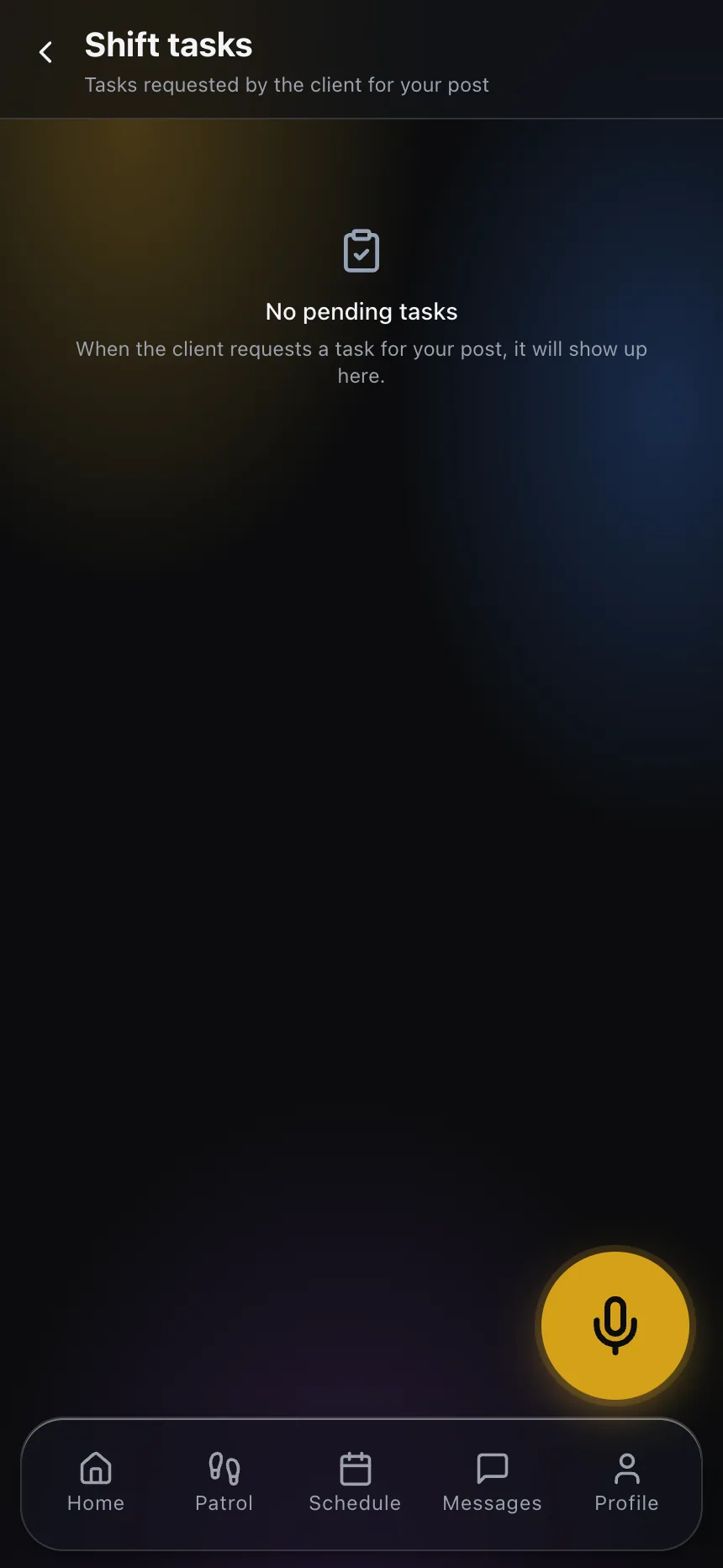
Client requests reach the shift as a clear checklist: what to do, where, and at what priority. Nothing falls through the cracks.

  • Client requests approved by dispatch
  • Priority and status per task
  • Completion tracking
Client post orders, as tasks
05 Schedule

The schedule, always at hand

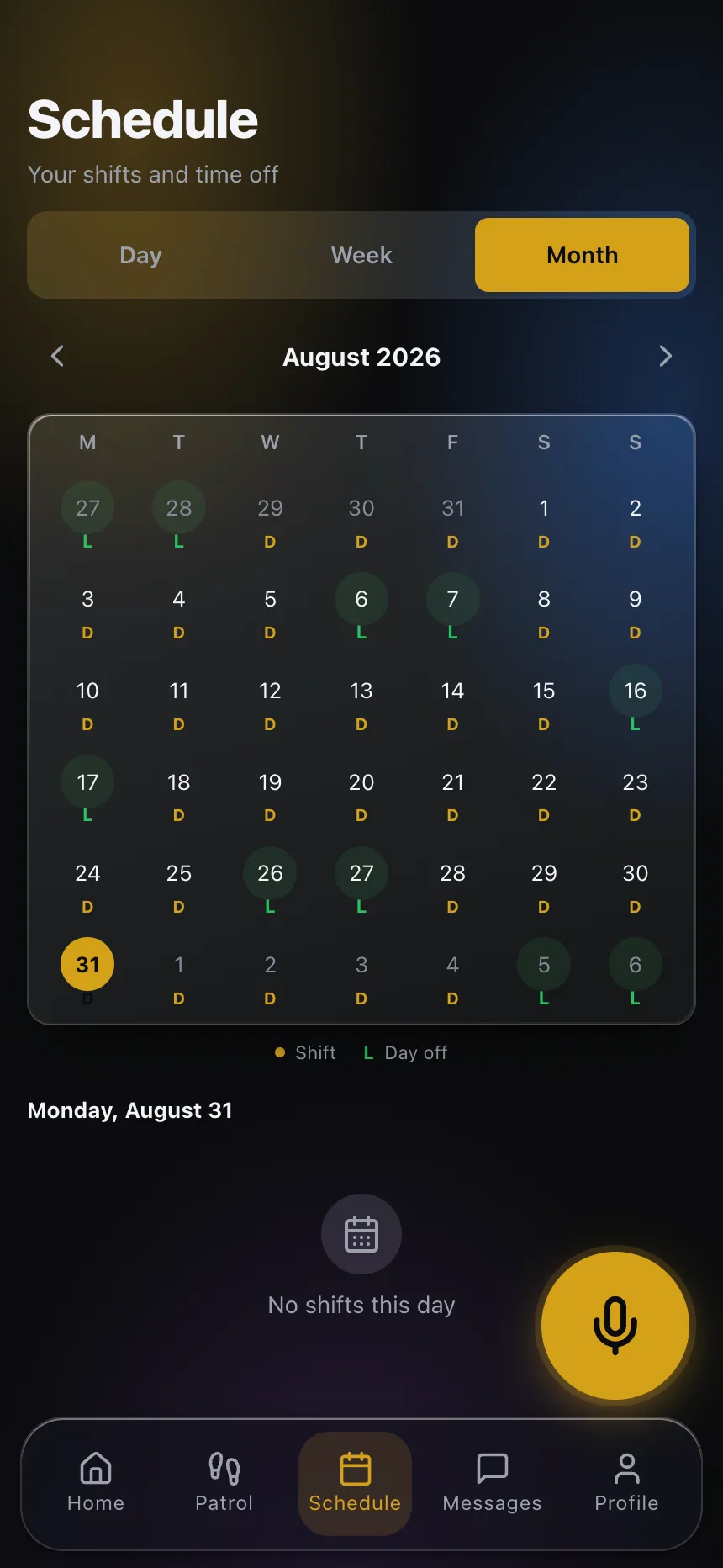
Every officer sees their shifts for the month — including overnight shifts — and gets notified about changes on their phone.

  • Day / week / month views
  • Overnight shifts handled right
  • Changes pushed to their phone
The schedule, always at hand

Built for field work

Panic button

An SOS that triggers the full response: dispatch alarm, team alert, and a priority case until resolved.

QR patrol rounds

Checkpoints scanned with the phone, with configurable rules verified on arrival.

Shift handover

Pass-down notes and instructions are delivered automatically to the incoming officer at relief.

Messaging & groups

Per-post chats with voice notes — inside the operation, not on personal apps.

Offline mode

Reports queue without signal and send themselves when the connection returns.

Training

Courses, quizzes, and C-Guard Pro certificates right on the officer’s phone.

Frequently asked questions

Do guards need a company phone, or can they use their own? +

Their own Android or iPhone is enough. There is nothing to buy for them to carry: no wands, no readers, no rugged handset. They install the app, accept the invitation you send them, and their schedule and posts are already there.

What happens when there is no signal on the post? +

The app keeps working. Checkpoint scans, reports, photos and gate entries are stored on the phone and upload themselves when coverage returns: a report keeps the time it happened, a checkpoint scan is stamped when it reaches the server, so it documents the pass and its order. Clock-in and clock-out are the exception and need a connection at that moment.

Can an officer fake a clock-in from home? +

Clocking in asks for a selfie and the phone position, and both are checked against the post before the shift is accepted: an attendance outside the site is not recorded as a normal clock-in. The same verification applies to checkpoint scans.

How much of the officer's phone does the app take over? +

Only what the shift needs. The push-to-talk radio, which is the part that used to hold the microphone, can be paused for a while and comes back on its own, so a call or a voice note is never blocked by the channel.

Is the app available in more than one language? +

Yes. The officer app and the management panel are available in English and Spanish, and each person picks their own — a bilingual team works in the same operation with each side reading their own language.

What does the guard do in an emergency? +

The panic button is in the app. Pressing it opens an alarm in your monitoring center with the officer identified and located, alerts the supervisors and the guards nearby, and stays open as a case until someone closes it.

Want to see it in action?

Book a demo and walk through the app with real operational data.